Everything Ice Commander Does
A complete overview of every feature — file operations, viewers, remote sources, terminal, and more. Connections, archives and most viewers come as plugins: install the ones you need.
Dual-Pane Interface & Navigation
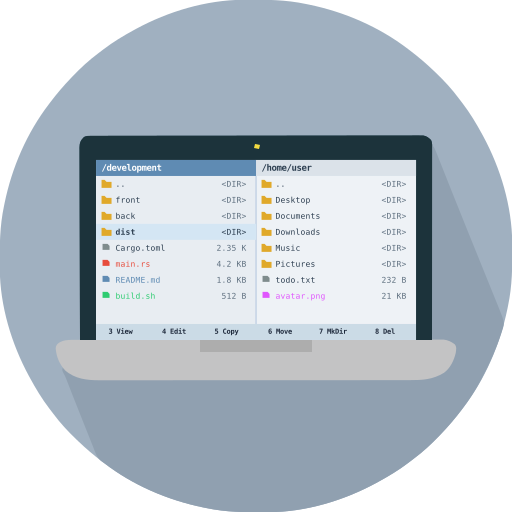
Ice Commander implements the classic dual-pane layout. Two concurrent directories open side-by-side make transferring, comparing, and managing files dramatically faster than any single-window browser.
Active & Opposite Panels
Operations like copy and move always go from the focused (Active) panel to the other (Opposite) panel. Tab key switches focus instantly.
DriveToolbar
Displayed at the top of each panel — shows local partitions, USB drives, and network mounts. One click to switch source.
Windows Logical Drives
On Windows, each logical disk (C:, D:, E:…) appears as a separate entry in DriveToolbar. Switching between drives is one click.
Breadcrumb Navigation
The path bar renders each segment as a clickable link. Click any parent directory to jump back immediately.
Favorites
Bookmark frequently used folders for instant access from the directory toolbar.
File & Folder Properties
Inspect the name, full path, type and modification date of any selected item.
Thumbnails
Images, RAW files, and supported media formats display inline thumbnails in list and grid views — no separate viewer needed to preview.
Find Files
Recursive file search across the active panel source. Works on local filesystem, remote FTP/SFTP/WebDAV, and inside archives.
Drag & Drop
Drop files from other applications into a panel to upload them into the current directory.
File Operations
All operations work uniformly across every source — local disk, FTP, SFTP, WebDAV, or archive. The same F-key commands handle any combination.
Copy (F5)
Copies selected files and folders from the active panel to the opposite panel. Shows a progress dialog with per-file and total byte progress.
Move / Rename (F6)
Moves files to the opposite panel, or renames them in place. Inline rename is available directly in the panel list.
Delete (F8)
Deletes selected files and folders recursively after a confirmation dialog.
Create Directory (F7)
Creates a new folder at the current path in the active panel.
Upload / Download
Explicitly upload a local file to a remote source or download from a remote source to local disk — with byte-level progress tracking.
Multi-select
Select multiple files with Shift+click, Ctrl+click, or keyboard. All operations apply to the entire selection.
Archive Support
The archives plugin treats archives as first-class virtual filesystems, nested to any depth and on any source. No extraction to disk required — navigate in, copy out, or create new archives without ever leaving the app.
Browse ZIP, TAR, TAR.GZ, TGZ
Enter any supported archive as if it were a regular folder. History navigation (back/forward) works across archive boundaries.
Zero Temp Files
File contents are read directly from the compressed stream. No intermediary disk writes even when copying from an archive to a remote server.
Nested Archives
Enter an archive inside an archive, to any depth. Each archive opens on top of whatever holds it, so the nesting is not limited to the local disk — a ZIP inside a TAR.GZ on a WebDAV server opens just as well. The navigation stack grows a virtual layer per level: outer.zip → inner.tar.gz → file.txt.
Extract
Decompress a local archive (or selected entries within it) to the opposite panel with one action.
Create Archive (Compress)
Select files or folders in a local panel and compress them into a new archive in the opposite panel.
Cross-source Copy
Copying from inside a ZIP directly to a remote FTP server decompresses and streams on the fly — no local temp copy.
Remote Sources & Connection Manager
FTP, SFTP and WebDAV are plugins, and each implements the same interface as the local filesystem. Navigation, search, copy and move, the viewer and the editor work the same way on a remote connection as on the local disk.
FTP Client
Connect to FTP servers with password authentication. Supports active and passive (PASV/EPSV) modes.
SFTP Client
Secure file transfer over SSH. Supports password and SSH keypair authentication (.pem, .pub).
SSH Terminal Sync
When a panel is connected via SFTP, opening the built-in terminal automatically starts an SSH session to the same server, already in the matching directory.
WebDAV Client
Mount filesystems over HTTP/HTTPS WebDAV. Compatible with Nextcloud, ownCloud, and any standard WebDAV server.
Connection Manager
One dialog (Ctrl+N) for every saved connection — group them into folders, drag to reorder, set a per-connection remote path or an SSH tunnel. The whole set exports and imports as a single file, and stored passwords are encrypted at rest.
Viewers & Editor
Open, preview, and edit files without leaving Ice Commander. The text and HEX editor is built in; pictures, PDF, music and video come as plugins. All of them work on local files, remote sources, and files inside archives.
Video Player (video plugin — mpv + OpenGL)
Video is a separate plugin that carries its own LGPL libmpv — the same player on Linux, macOS and Windows. Hardware-accelerated, and it streams from FTP, SFTP, and WebDAV without a full download.
Audio Player with Playlist (Music plugin)
Plays a track with the rest of the folder as its playlist. Volume control, track seeking, pause/stop.
PDF Viewer (Documents plugin)
PDF page by page, with its own PDFium. Loads documents directly from remote and virtual paths.
Image Viewer & Thumbnails (Pictures plugin)
Thumbnails inline in the panel; the Pictures plugin opens PNG, JPEG, WebP, AVIF, JPEG XL, TIFF, SVG and more full-screen.
Camera RAW Support
Extracts embedded JPEG previews from TIFF EXIF headers of RAW files — Canon CR2/CR3, Nikon NEF, Sony ARW, Adobe DNG. Instant thumbnails, no importer needed.
Text Editor
Built-in text editor with encoding detection and conversion (UTF-8, Windows-1251, and others). Configure external editors (VSCode, vim, nano) as alternatives.
HEX Viewer & Editor
Inspect and edit any file in hexadecimal view. Useful for binary files, firmware, and raw data inspection.
Integrated Terminal
Each panel has its own embedded PTY terminal. The terminal always knows where you are and opens in the right context automatically.
Automatic CWD Sync
Opening the terminal navigates the shell directly to the panel's current folder — no need to type cd commands.
SSH Session for SFTP Panels
If the panel is connected via SFTP, the terminal opens an SSH session to that server and changes to the matching remote path.
Expand to Full Width
Expand the terminal to fill the entire window — the opposite panel hides so you have maximum screen space for command-line work. Collapse restores the full layout.
Per-Panel Instance
Left and right panels each have an independent terminal session. Both can be open simultaneously.
Keyboard Shortcuts
Ice Commander is fully keyboard-driven. All shortcuts are configurable and stored in the app settings.
F3 — View File
Opens the built-in viewer for PDF, video, audio, image, or RAW files.
F4 — Edit File
Opens the built-in text/HEX editor, or launches the configured external editor.
F5 — Copy
Copies selected items from the active panel to the opposite panel.
F6 — Move / Rename
Moves selected items or renames the focused item in place.
F7 — Create Directory
Creates a new folder at the active panel path.
F8 — Delete
Deletes selected items after confirmation.
F9 — Toggle Terminal
Opens or closes the terminal for the active panel.
Tab — Switch Panel
Moves keyboard focus between left and right panels.
Ctrl+N — Connections
Opens the connection manager to add or edit remote sources.
Ctrl+F — Quick Filter
Opens an inline filter bar to narrow the file list by name.
Ctrl+S — Find Files
Opens the recursive file search dialog.
BackSpace — Go Up
Navigates to the parent directory.
Alt+Return — Expand Terminal
Expands the active terminal to full window width.
Alt+Escape — Collapse Terminal
Collapses the expanded terminal, restoring the dual-panel layout.